Note: Please notify Hecio of any changes to Adobe Passwords so that our records can accurately reflect your credentials.
Changing Adobe Password Without Knowing Adobe Password:
Open Adobe Acrobat, you will be automatically met with the following prompt:
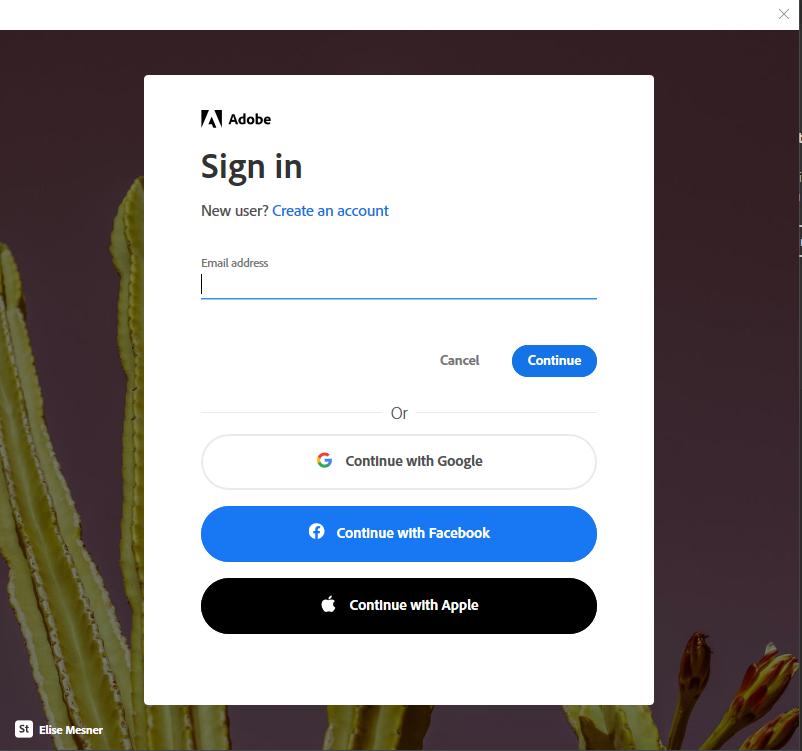
From here you will enter your email address and then press continue.
The portal will then ask for your current password, instead click on the “Rest your Password” prompt in the lower left corner.
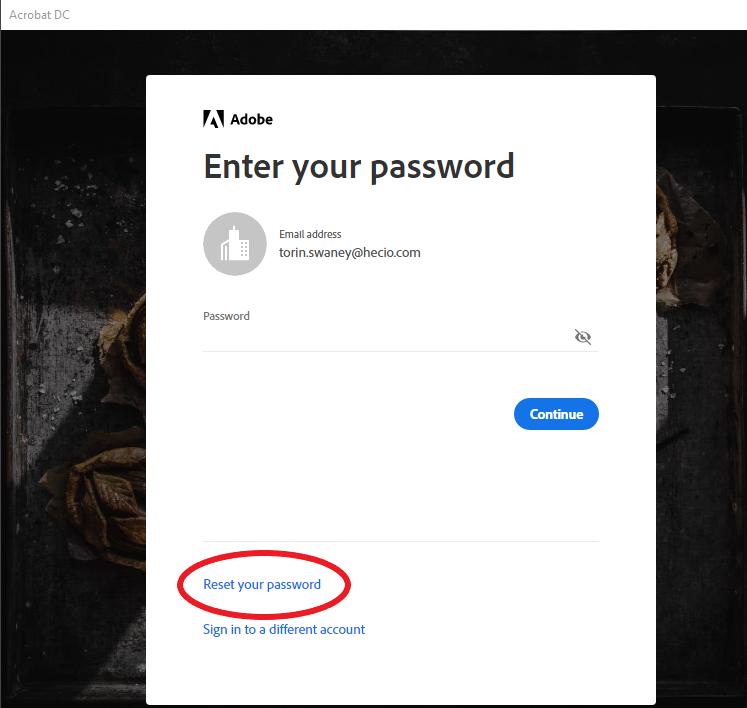
This will bring up the following:
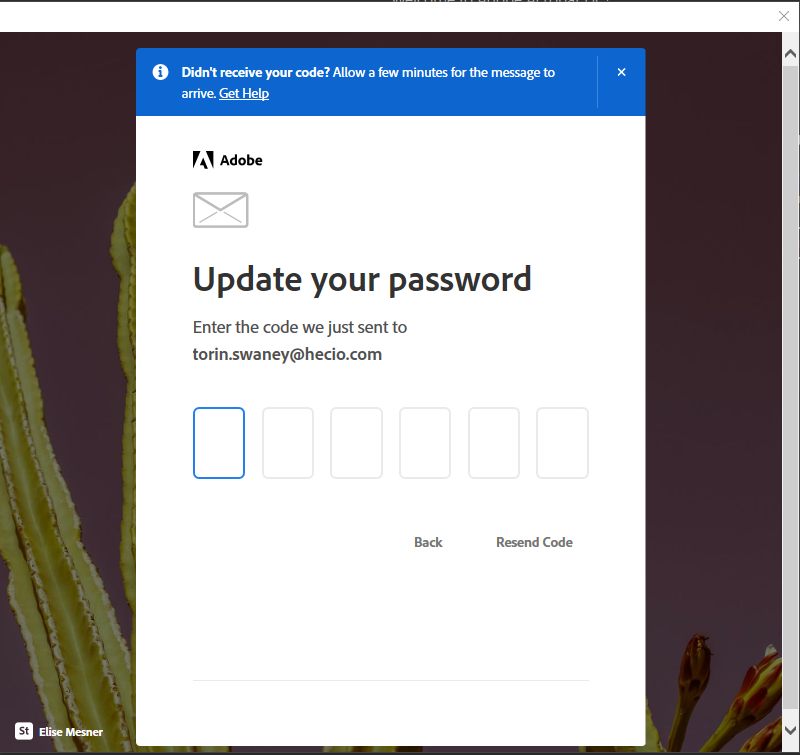
A code will be sent to the email listed on the screen, this six-digit code is used to verify that you are the owner of the account and license for Adobe. Go to your email account and look for an email from Adobe called “Verification code.
The verification code will be displayed in a format like this:

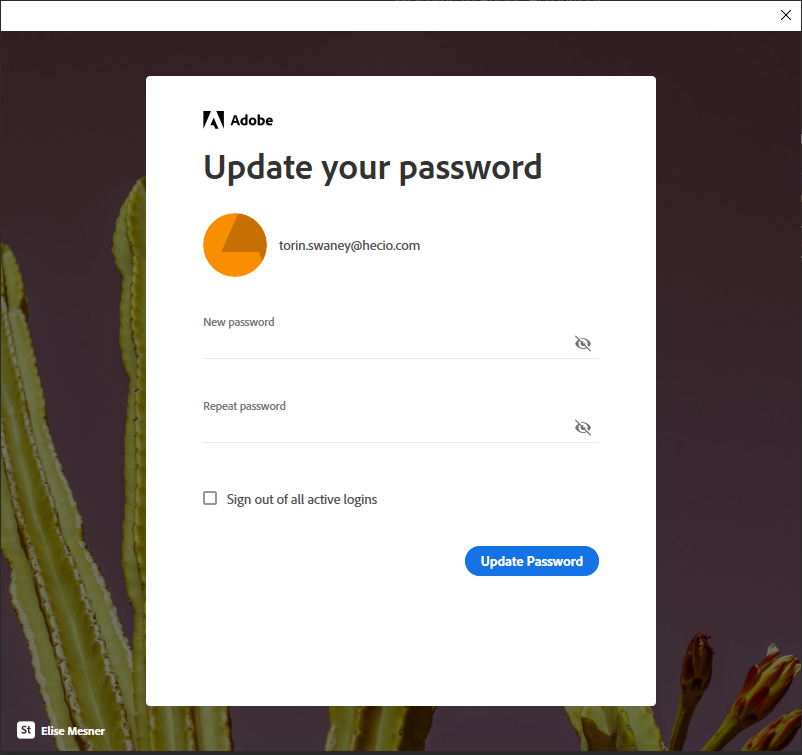
Once you have gotten the verification code, enter it into the prompt from Adobe to continue resetting your password. Enter in your new password and confirm it by clicking “Update Password” in blue.
Was this article helpful?
That’s Great!
Thank you for your feedback
Sorry! We couldn't be helpful
Thank you for your feedback
Feedback sent
We appreciate your effort and will try to fix the article